October 7, 2025 · 6 min read
What To Do When WordPress Updates Break Your Site
A WordPress update that breaks your site usually comes down to a plugin, theme or core conflict. See what to check first and how to fix it.
There’s nothing more jarring than logging into your WordPress site only to realise something’s gone wrong after an update. Maybe your homepage isn’t loading, your layout looks broken, or you can’t even access the dashboard. It feels like everything was working just fine, and then suddenly, it’s chaos. If you’ve landed in that spot, it’s frustrating, especially when your website plays a big part in how your business runs day to day.
WordPress updates are meant to improve things like functionality, security patches, and performance. But they don’t always go smoothly. Themes can clash. Plugins can crumble. And when those parts stop working well together, your entire website can take the hit. The good news is that these issues are often fixable, and even better, preventable once you know what’s happening behind the scenes.
Common Causes of WordPress Update Problems
If your site broke right after clicking that update button, you’re not the only one. There are a few key areas where things usually go wrong. Understanding these gives you a better shot at fixing them quickly, or stopping them from happening next time.
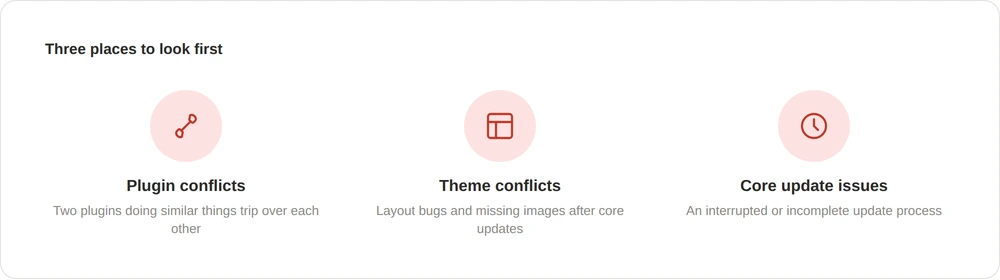
- Plugin Conflicts: Plugins are great for adding new features, but they’re not always built to work together. When two or more plugins try to do similar things, they can trip over each other. After an update, you might see errors, broken features, or even a blank screen. That’s usually a sign that one plugin stepped on another’s toes.
- Theme Incompatibilities: Your theme controls how the site looks and, to some extent, how it behaves. When WordPress gets updated, some themes can struggle to keep up. If the theme developer hasn’t refreshed the files to work with the newer version of WordPress or a plugin, things can break. You might see layout bugs, missing images, or strange formatting all over the place.
- Core Update Problems: On occasion, the problem lies within the update process itself. Maybe the update didn’t complete properly, or there was a glitch mid-process. Corrupt files or interrupted server connections can stop your site from loading altogether. You’ll need to restore missing or broken parts before things are back to normal.
Say you run a pet grooming service, and right after updating WordPress, your appointment form vanishes. The issue could be an old plugin that powers that form and doesn’t work well with the new software. Without touching anything else, a major piece of your service has just gone offline.
Plugins, themes, and core system glitches are usually the root of these problems. The next step is figuring out what to do to get your website working again.
Immediate Steps to Take When Your WordPress Site Breaks
If your site already looks broken or won’t load after an update, don’t panic. Acting quickly and in the right order can help reduce downtime and avoid further damage. Here’s how to start fixing things:
- Enter maintenance mode: It’s best to hide broken pages from visitors while you fix the issue. You can use a maintenance plugin or enable this feature through your hosting dashboard to show a temporary notice.
- Restore a recent backup: If you’ve been keeping backups, this is where they shine. Go back to the most recent working version of your site. You might lose a few minor changes, but you’ll be back on solid ground to figure out what went wrong.
- Disable plugins step by step: Turn off all plugins from your hosting control panel or FTP. If the site works again after that, the cause is likely a plugin conflict. Reactivate each plugin one at a time until the problem shows up again. The last one turned on is probably the source.
- Try switching to a default theme: If the fault isn’t in the plugins, change your theme to something like Twenty Twenty-Four. If the layout and errors disappear, your regular theme may not be keeping up with updates.
- Look into version mismatches: Sometimes the issue is behind the scenes. Maybe your server is still running an old PHP version that’s no longer supported by the new WordPress update, or your theme or plugin depends on outdated functions. Your web host’s dashboard should show you what version you’re running and where gaps might sit.
These short-term actions help get your site up and running again. Once that’s done, it’s time to build habits that prevent this kind of mess next time.
Long-Term Solutions to Prevent Future Issues
Getting your site working again is the first step. To keep it that way, you’ll need some long-lasting habits that keep bugs and crashes at bay.
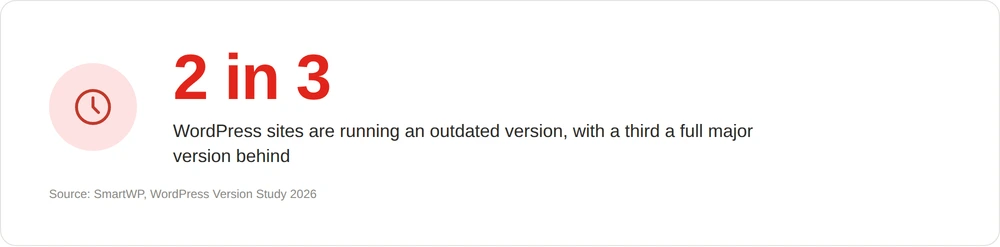
Falling behind on updates is more common than it sounds. Roughly two-thirds of WordPress sites are running an outdated version, and a third are a full major version behind. The longer that gap grows, the bigger the leap when you finally do update, and the more likely something breaks along the way.
Always keep backups. Whether it’s once a week or every night, set up automatic backups so there’s always a workable copy of your site. Even if an update throws something off, you’ll have a version that’s just a restore button away.
Avoid live site testing. A staging site is a full copy of your website stored safely in its own corner of your hosting. That means you can test plugin updates, experiment with changes, or try new features, without touching your real site. If something breaks the staging site, at least your audience never knows.
It also helps to get professional support. WordPress changes often, and one plugin update today might cause trouble next month. Ongoing WordPress support can track all your site’s moving parts, spotting conflicts and reviewing code changes before updates go live, so maintenance stays far less stressful.
Keep Your Site Running Without Surprises
WordPress updates play an important role in keeping your site secure and functional, but they don’t always go to plan. A change in one plugin or an update to your theme might lead to errors, broken layouts, or frustrating downtime, especially when all those elements are out of sync. But the more you understand how these problems happen, the easier it becomes to avoid them.
Fixes do exist when things go wrong, but the real win comes in setting up safer habits: backups as second nature, a staging site to test in peace, and someone in your corner who knows what to watch out for.
If keeping on top of updates, backups, and plugin conflicts isn’t where you want to be spending your time, our WordPress development team handles exactly that.